Start, Stop, Restart and connect to open ssh server using the terminal
ID: 419
Category: Linux
Added: 16th of January 2026
Views: 1,410

OpenSSH Server allows you to securely access machines either remotely or locally. For example, if you are running a Linux web server, you can log in via SSH to check the server's status, edit configuration files, or manage databases. Because OpenSSH is fully encrypted, it ensures that "snoopers" on the network cannot intercept your passwords or sensitive data.
To install open OpenSSH server in Linux Mint, Ubuntu and Ubuntu based distributions enter the following command
sudo apt install openssh-server
Once installed you can start, stop, restart and check the status via the terminal commands below.
To check the status of OpenSSH server
sudo systemctl status ssh
To start OpenSSH server enter the following command
sudo systemctl start ssh
To stop OpenSSH enter the following command
sudo systemctl stop ssh
To restart OpenSSH server enter the following command
sudo systemctl restart ssh
Once installed you can access your local machine where OpenSSH server is installed, from another machine on your local network by entering the following command
ssh username@ip_addresss
By default OpenSSH accepts connections on Port 22, but you may want to change to this on the machine where OpenSSH has been installed. To change the port number you need to edit the following file
sudo nano /etc/ssh/sshd_config
Here is a screenshot of the current config file, where the port number has been changed to 4513
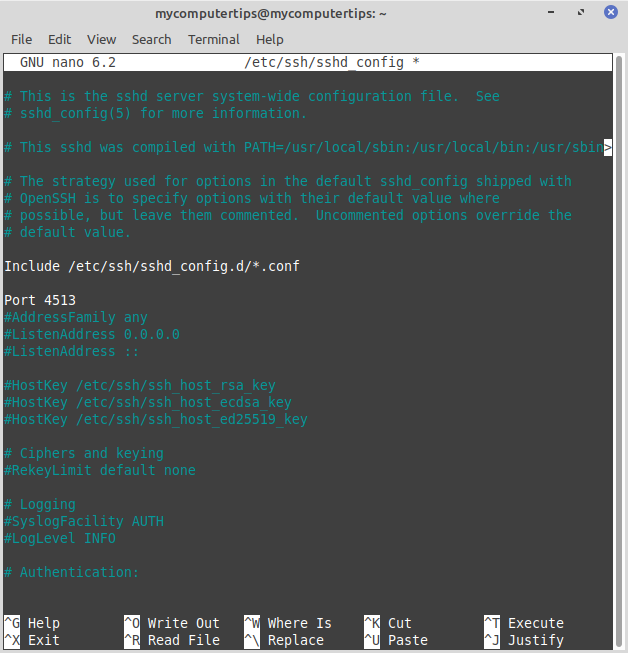
When you changed the port number have saved the config file in nano, you will need to restart OpenSSH server
sudo systemctl restart ssh